Google Search Console shows many site owners the “Alternate page with proper canonical tag” message. It looks like an indexing problem, so it’s common to try to fix it immediately. In most cases, that’s unnecessary — this status often confirms your canonical setup is working.
This guide explains what the Alternate Page with Proper Canonical Tag status means, when you should take action, and how to fix the situations where it points to a real issue.
Article Summary (TL;DR)
- This status usually means your canonical tags are working. Google found duplicate URLs, chose the canonical version, and did not index the duplicates.
- Ignore it when the right page is indexed. Product variants, filtered URLs, print pages, AMP, RSS, and language/region pages commonly trigger this status.
- Take action when important pages are missing from the SERPs. That often points to canonicals, internal linking, or URL structure issues that need fixing.
- The best workflow is: export → group URL patterns → inspect samples → fix root causes. Don’t edit hundreds of URLs one-by-one without finding the pattern first.
Key Takeaways
- The Alternate Page with Proper Canonical Tag status is usually good news, not an error. It means Google found duplicate content and followed your canonical tags to index the correct version.
- Most cases don’t need fixing. Ecommerce product variants, print pages, AMP pages, RSS feeds, and multilingual sites commonly generate this status as part of normal site behavior.
- Only act when you see warning signs. For example: a large volume of alternates compared to your site size, important pages missing from the SERPs, or canonical tags pointing to non-existent URLs.
- Canonical tags serve four main SEO purposes. They combine ranking signals, prevent keyword cannibalization, save crawl budget, and improve user experience by directing users to the best page version.
- Follow a systematic fix process. Export data from Google Search Console, group URLs by type, inspect samples with the URL Inspection Tool, and fix the underlying pattern.
- Common fixable issues include: trailing slash inconsistencies, case sensitivity issues, incorrect canonical targets, and hreflang tag errors.
- Platform-specific solutions exist. WordPress sites typically control canonicals through SEO plugins, Shopify stores often need to manage collection/variant URL behavior, and custom sites must implement canonicals directly in templates.
- Regular maintenance helps prevent surprises. Check the report monthly, review canonical rules quarterly, and re-audit after major site changes.
- Use the right tools for monitoring. Google Search Console for index signals, Screaming Frog for crawl checks, and analytics dashboards to watch traffic impact.
What Does Alternate Page with Proper Canonical Tag Mean?
Google Search Console shows “Alternate page with proper canonical tag” when Google finds two or more versions of the same page. The duplicate pages use rel=”canonical” tags that point to the main version.
Here’s what happens:
- Google finds multiple URLs with the same content.
- These pages contain canonical tags pointing to the main version.
- Google picks the canonical version and skips the duplicates.
- Your system works right.
This status usually confirms your canonicalization works. Google sees and follows your canonical tags.
Understanding Canonical Tags: The Foundation
A canonical tag tells search engines which page version to treat as the main copy when you have similar pages.
Canonical Tag Code
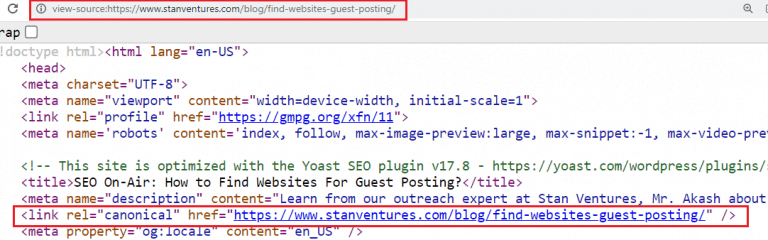
Here’s what a canonical tag looks like within a site’s HTML:
Types of Canonical Tags
There are two different canonical tag patterns you need to be aware of:
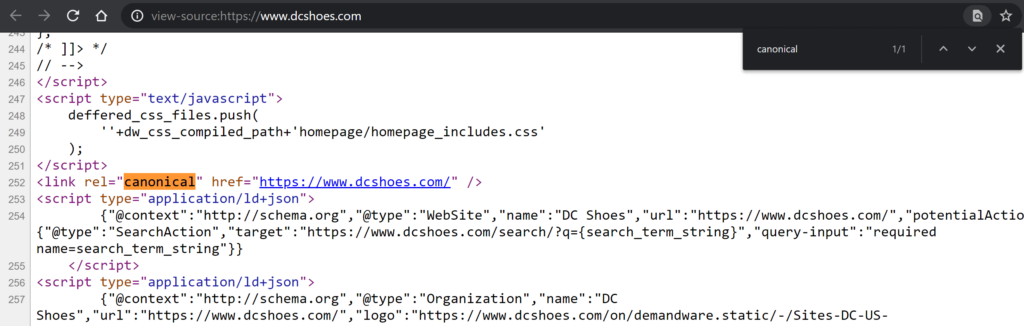
Self-Referencing Canonical
This is what a self-referencing canonical tag looks like in a site’s HTML:
Preferred Canonical Tag
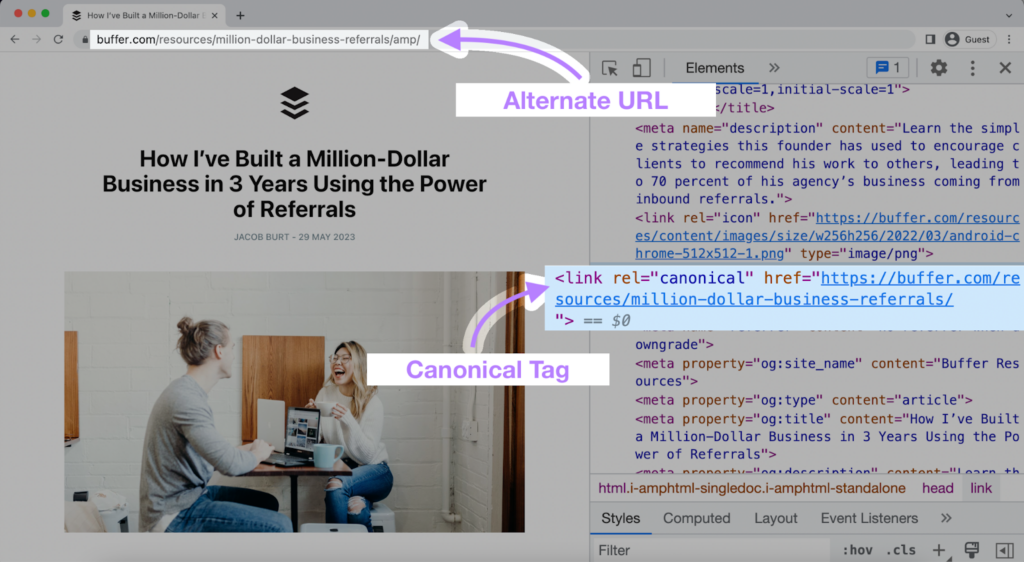
This is what a preferred canonical tag looks like in a site’s HTML:
Why Canonical Tags Help SEO
Combine Ranking Power
Backlinks and user signals focus on one URL instead of spreading across duplicates.
Stops Keyword Cannibalization
Similar pages won’t compete against each other for the same terms.
Saves Crawl Budget
Search engines crawl your best content instead of duplicates.
Improves User Experience
Visitors land on your best page version.
When You Don’t Need to Fix Alternate Page with Proper Canonical Tag
This is important. The Alternate Page with Proper Canonical Tag status is not an error most of the time. These scenarios show when this status helps your site:
Ecommerce Variations
Ecommerce sites naturally have different variations of products, collections, and filters. Because of this, it’s natural for Google Search Console to show examples of the Alternate Page with Proper Canonical Tag status.
Here’s an example.
Main Product:
/products/running-shoes/
Variants:
/products/running-shoes/?color=red
/products/running-shoes/?size=10
/collections/athletic/products/running-shoes/
Content System Features
Many websites see this status in Google Search Console. It means Google found other versions of a page and chose not to index them. That’s not always bad. But it’s helpful to know what types of pages cause it.
Here are four common examples:
Print versions of articles
Some websites offer a print-friendly version of each article. These pages remove menus, ads, or extra formatting. Google sees them as duplicates of the main article. So the print version gets a canonical tag that points to the full article.
AMP pages
Accelerated Mobile Pages (AMP) are stripped-down versions for fast loading on mobile. They often live on a separate URL. The main page usually gets indexed. The AMP version includes a canonical tag pointing back to that main page.
Page splits pointing to full pages
Some sites split long articles into many pages (like page 1, page 2, etc.). Others offer a “view as one page” option. Google prefers the full version. The split pages often get marked as alternate pages with a canonical to the full version.
RSS feed URLs for the same content
Blog posts and news articles often appear in RSS feeds. These feed URLs are not meant to be indexed. They usually include a canonical pointing to the full page. Google respects that and avoids indexing the feed version.
All these examples are normal. They help Google pick the right version to index. If your main content gets indexed and ranked, this status is not a problem.
Multi-Language Sites
The Alternate Page with Proper Canonical Tag status can also appear on websites with different language versions. You, naturally, set up canonical tags to avoid duplicate content across different regions. Because of this, the status shows within Google Search Console.
When You Should Check and Fix Alternate Page with Proper Canonical Tag
Many cases of the Alternate Page with Proper Canonical Tag status don’t need action. But some situations will require your attention.
Warning Signs That Need Action
Here are some warning signs to look out for:
Too Many Messages for Your Site Size
If you are seeing thousands of these messages on a site with only hundreds of pages, this points to structural problems.
Important Pages Missing from the SERPs
Pages you want indexed show up in this Alternate Page with Proper Canonical Tag report. You need to update their canonical tags.
Incorrect Canonical Setup
Pages point to canonical URLs that don’t exist or don’t match the content.
Crawl Budget Problems
Large sites waste crawl budget on duplicate pages they don’t need.
Step-by-Step Fix Process
Here is the step-by-step process you can use to fix any instance of the Alternate Page with Proper Canonical Tag status that needs fixing:
Step 1: Get and Export the Data
Go to Google Search Console.

Access your Page Indexing Report.

Scroll down to the “Why pages aren’t indexed” section.

Click on the “Alternate page with proper canonical tag” message.

Click the “Export” button.

Step 2: Sort Your URLs
You’ll find different types of duplicate pages. Group them to spot patterns.
Parameter URLs
Example:
Main: /product/shoes/
Duplicate: /product/shoes/?utm_source=facebook&color=red
Collection Variations
Example:
Main: /products/running-shoes/
Duplicate: /collections/athletic/products/running-shoes/
Technical Duplicates
Example:
With slash: /about-us/
Without slash: /about-us
Case Differences
Example:
Lowercase: /contact-us/
Uppercase: /Contact-Us/
Step 3: Check Sample URLs
Use the URL Inspection tool in Google Search Console. For each URL check:
- What canonical tag your page sets.
- What canonical URL Google chooses.
- If they match.
If they match, your setup is working fine. If not, you may have a problem.
Step 4: Find Patterns and Problems
Here are common issues that cause this warning:
Slash Problems
Google sees /page/ and /page as different.
Fix: Add a 301 redirect so they match.
Case Problems
Google treats /About and /about as different.
Fix: Redirect uppercase to lowercase URLs.
Wrong Canonical Tags
Some pages point to URLs that don’t exist.
Fix: Update the canonical tag to the correct URL.
Language or hreflang Errors
Bad hreflang tags confuse Google’s index.
Fix: Review your international SEO setup.
Advanced Problem Solving
Some sites have more complex setups. Large ecommerce stores and multi-language websites often see this issue. Here’s how to handle it.
Large Ecommerce Sites
If your store has thousands of products or filters:
Fix Internal Links
Make sure your menus and category pages link to the main product URLs. Avoid linking to filtered or variant URLs.
Check Filtered Pages
Filtered pages should point to the main product list. Add a canonical tag like this:
<link rel=”canonical” href=”https://example.com/products/shoes/” />
Review URL Structure
Ask yourself if each URL helps users. If not, it may just add duplicate content. Keep your URL structure clean and simple.
Multi-Language Site Tips
Google’s Gary Illyes said language versions need clear signals. Treat each version like its own page.
Use Proper Hreflang Tags
Set hreflang and canonical tags on every page:
<link rel=”alternate” hreflang=”en” href=”https://example.com/en/page/” />
<link rel=”alternate” hreflang=”fr” href=”https://example.com/fr/page/” />
<link rel=”canonical” href=”https://example.com/en/page/” />
Don’t Mix Languages
Don’t point French pages to English canonical URLs. Only do this if both pages show the same content.
Track Each Version
Use Search Console to watch each language version. This helps you catch problems early.
Platform Solutions
WordPress
Use SEO plugins like Yoast or RankMath. They let you manage canonical tags easily.
Shopify
Watch for common issues like:
- Collection product URLs.
- Tracking codes in variants.
- Currency or language folders.
Use apps or custom edits to control canonicals.
Custom Sites
Add a canonical tag to every page. It should go in the <head> section like this:
<link rel=”canonical” href=”https://example.com/canonical-url/” />
These steps help large and global sites stay clean. They also make sure Google indexes the right content.
Tracking and Maintenance
Fixing canonical tags once is not enough. You need to check your setup often. That way you can catch new problems before they hurt your traffic.
Check Schedule
Monthly
- Open Google Search Console.
- Check the Alternate page with proper canonical tag report.
- Look for new patterns or pages showing up.
Every 3 Months
- Review canonical tags across key page types.
- Check product pages, category pages, blog posts, and filters.
After Big Changes
- Check canonicals after new launches.
- This includes redesigns, new filters, or changes to your URL structure.
Tools for Tracking
Google Search Console
- Your main tool for checking index status.
- Use it to find alternate pages and inspect canonical tags.
SEOTesting
- Use SEOTesting’s Keyword Cannibalization Report.
- This can give you hints as to where incorrect canonical tags are on your site.

Screaming Frog
- Crawl your site to spot missing or wrong canonical tags.
- Export the results and group by page type.
Custom Analytics Dashboards
- Watch organic traffic by page type.
- Check if changes in canonical tags affect visibility.
Frequently Asked Questions
Is “Alternate page with proper canonical tag” bad for SEO?
Not by itself. This status usually means Google understood your canonical tags and chose the correct page to index. It becomes a problem only when the wrong page is treated as canonical, or when important pages are excluded from indexing.
Should I fix every URL listed in this report?
No. Start by confirming that the canonical version is indexed and is the page you actually want to rank. If that’s true, the alternate URLs can stay as-is. Focus on fixing patterns that cause important pages to be excluded or that generate unnecessary duplicate URLs at scale.
What’s the difference between “Alternate page with proper canonical tag” and “Duplicate, Google chose different canonical than user”?
“Alternate page with proper canonical tag” usually means Google agreed with your canonical choice. “Duplicate, Google chose different canonical than user” means Google did not follow your declared canonical and selected a different URL instead — which typically warrants investigation.
How do I check which canonical Google picked?
Use the URL Inspection tool in Google Search Console on an affected URL. Compare the “User-declared canonical” with the “Google-selected canonical.” If they differ, look for reasons like internal linking signals, redirect chains, inconsistent URL rules, or mismatched content.
Can canonical tags consolidate ranking signals like backlinks?
They can help consolidate signals by indicating the preferred URL for indexing, but canonicals are a hint, not a command. Strong conflicting signals (internal links, sitemaps, redirects, external links) can cause Google to pick a different canonical.
Should I noindex alternate pages instead of using canonicals?
Usually no. Canonicals are designed for duplicate/variant URLs where one primary version should be indexed. “noindex” can remove pages from the index entirely, and if misused it can suppress pages you actually want to rank. Use noindex only when the page truly should not appear in search results.
Will redirects fix this status?
Sometimes. Redirects are best for technical duplicates that should never exist (for example, http→https, trailing slash rules, uppercase vs lowercase, or old URLs). For legitimate variants (like filters or tracking parameters), canonicals are often the better solution.
How long does it take for this report to update after changes?
It depends on crawl frequency. After you fix the underlying issue (canonicals, redirects, internal links), Google needs to recrawl and reprocess the URLs. Monitor the trend in the report over time instead of expecting same-day changes.
What’s the most common cause on ecommerce sites?
Multiple URL paths to the same product (collections, variants, filters, tracking parameters). The best fix is consistent internal linking to your preferred product URL plus canonical rules that point variants back to the primary version.
Wrapping Things Up
Most SEOs worry about the Alternate Page with Proper Canonical Tag status. They shouldn’t. This status shows your site works right.
Google found your duplicate pages. Google followed your canonical tags. Google picked the right page to index. This is good news.
You only need to act in three cases. First, when important pages don’t show up in search results. Second, when you see too many messages for your site size. Third, when your canonical tags point to wrong URLs.
Don’t worry about the rest. Your store variants will create this status. Your print pages will too. So will your AMP pages and language versions. This is normal.
Check Google Search Console each month. Review your canonical tags every three months. Audit your setup after big site changes. This helps you catch real problems early.
Your canonical tags work. Now you know when to fix them and when to ignore them.
Interested in getting more value from your Google Search Console data? Give SEOTesting a try.
We archive all of your GSC data, allowing you to move well beyond the sixteen month data archiving limit set by Google. Add to that the comprehensive SEO testing toolset and pre-built reports designed to make more use of your data. We’re a great tool to consider.
We have a 14-day free trial. No credit card required. Sign up today.
Testimonials
-

"Can totally recommend! It’s not only full of reports to easily identify low hanging fruit opportunities but also, the most straightforward platform to help run SEO tests"
Aleyda Solis, Intl SEO Consultant, Speaker & Author.


-

"SEOTesting.com has become one of my go-to SEO tools because it does so much with all the valuable data hidden in Google Search Console. It's the only thing that gives us the ability to use that data for keyword tracking, SEO tests, and quality testing."
Ruben Gamez, DocSketch