Thank you so much for trying out SEOTesting.
This post will give you a quick intro to all the areas of the tool to get you up to speed quickly.
Here’s a quick map of the areas covered in this guide, so you can jump straight to what you need:
- Launchpad and dashboards – your overview of every site.
- Tests – SEO tests, split tests, LLM tests, and annotations for recording changes.
- Reports – daily opportunities, automated end-of-month reports, and longer-term content audits from your Search Console data.
- AI SEO Lab tools – AI-assisted content and persona analysis.
- InternalLinking – find and manage internal linking opportunities across your site.
- Website Monitoring – low-touch monitoring of the files search engines read first.
- Free SEO tools – quick standalone checkers for titles, canonicals, and sitemaps.
- Integrations – connect SEOTesting to your dashboards, browser, and AI workflows.
- FAQs
If you have any questions please use the message widget in the bottom right of your screen or drop an email to hello@seotesting.com.
Launchpad and Site Dashboards
Upon registering and adding your first site to SEOTesting, or logging back in again, you’ll see the Launchpad.
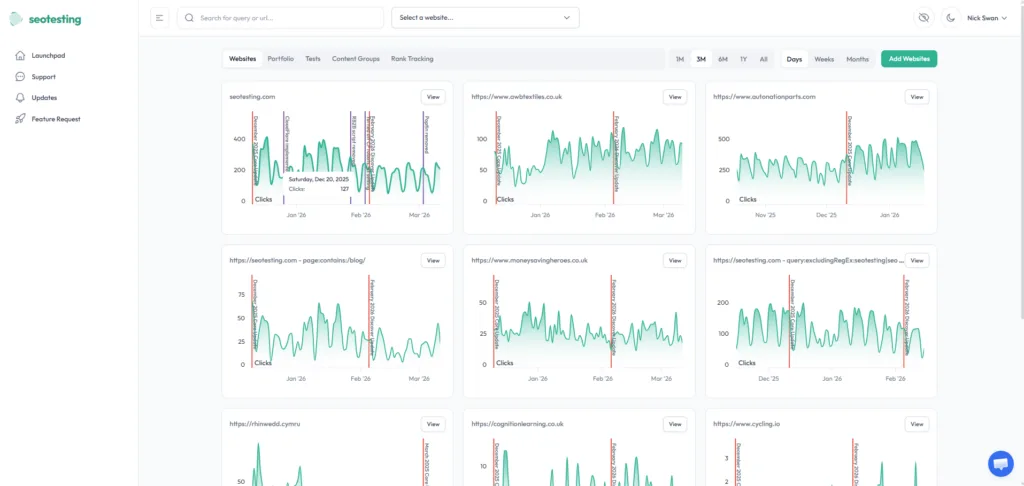
This gives you an overview of the clicks per day for each of the sites you added to SEOTesting.
You’ll also see Google algorithm updates marked on the graphs. The default display setting for these algorithm annotations can be changed within each website’s configuration settings.
On the Launchpad, if you click on the site name above the Clicks Per Day graph you’ll be taken to the Dashboard for that site. Here you’ll see clicks, impressions, average position and click-through rate for the site.
You’ll also notice when you click into a site the left hand navigation expands so you can view tests, reports and other functionality specific to that site.
How to run SEO tests and record changes you’ve made to your site
When you’ve made a change to your website, there are two ways to capture it in SEOTesting, depending on whether you want to measure the impact or just keep a record:
1. Tests: measure whether a change worked
Tests compare performance before and after your change, or against a control group, so you can see whether it made a difference:
You can also test changes across multiple pages at once with a group test, or use a URL switch test to validate keyword cannibalization fixes, topic clusters, and URL redirections.
2. Annotations: record what happened, for context
Annotations mark a date on your graphs so you and your team know why the data moved. Use them for changes you don’t need to test, or for things outside your control, like a competitor launch or a site outage. You can add them at site, page, query, or content group level.
Rule of thumb: if you want to know whether it worked, run a test. If you just want to remember it happened, add an annotation.
SEO tests and annotations are recorded in the site’s changelog – which can be used for reporting (and remembering) what has been changed over the history of the site. All these tests, annotations, algorithm updates, and content groups feed into the AI summaries for our End of Month reporting tool. The more you add to SEOTesting, the better the insights.
Reports
We spend a lot of time in the Reports section of SEOTesting when working on a site. On a day to day basis we are looking for new content and click-through rate opportunities. On a longer term basis, for example once a quarter, we use a number of the reports as part of an SEO content audit across the site.
Whenever you see a query or a url in the reports you can click on them to see more details.
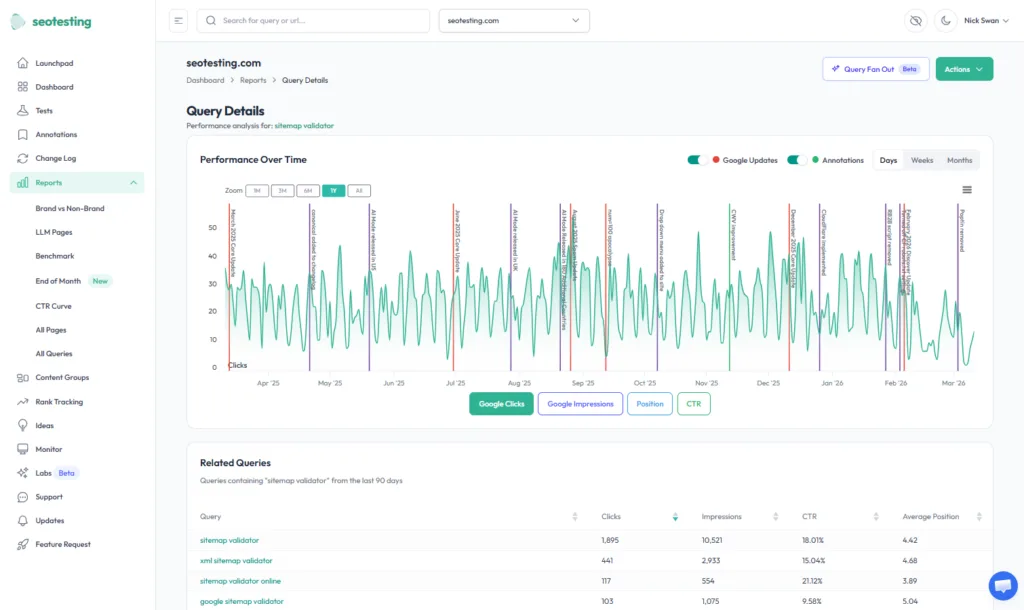
Here’s a summary of other reports we use regularly in SEOTesting.
Winners and losers
See improvements and drops in the number of clicks and impressions generated by individual search queries and web pages over the last 7 days. You’ll also get these emailed to you each time a full week of Search Console data is available.
Brand vs Non-Brand
Separate branded searches from the rest to understand your true non-brand growth. Read more.
End-of-Month Report
SEOTesting generates an AI-written summary that pulls together your tests, annotations, algorithm updates, and content group changes into a single monthly report, with the key movements and suggested next steps. Read more.
Find click-through rate opportunities
The set of click-through rate reports help you find pages that may be need a little tweak on the meta title and description.
- CTR Curve – see how your click-through rate compares across ranking positions, so you can judge whether a page is over- or under-performing for where it ranks. Read more
- Low click-through rates By Query/Page – find opportunities by URL or query.
- Top Query Per Page Report – Improve your click-through rates by making sure a page’s top query is in it’s title and meta description.
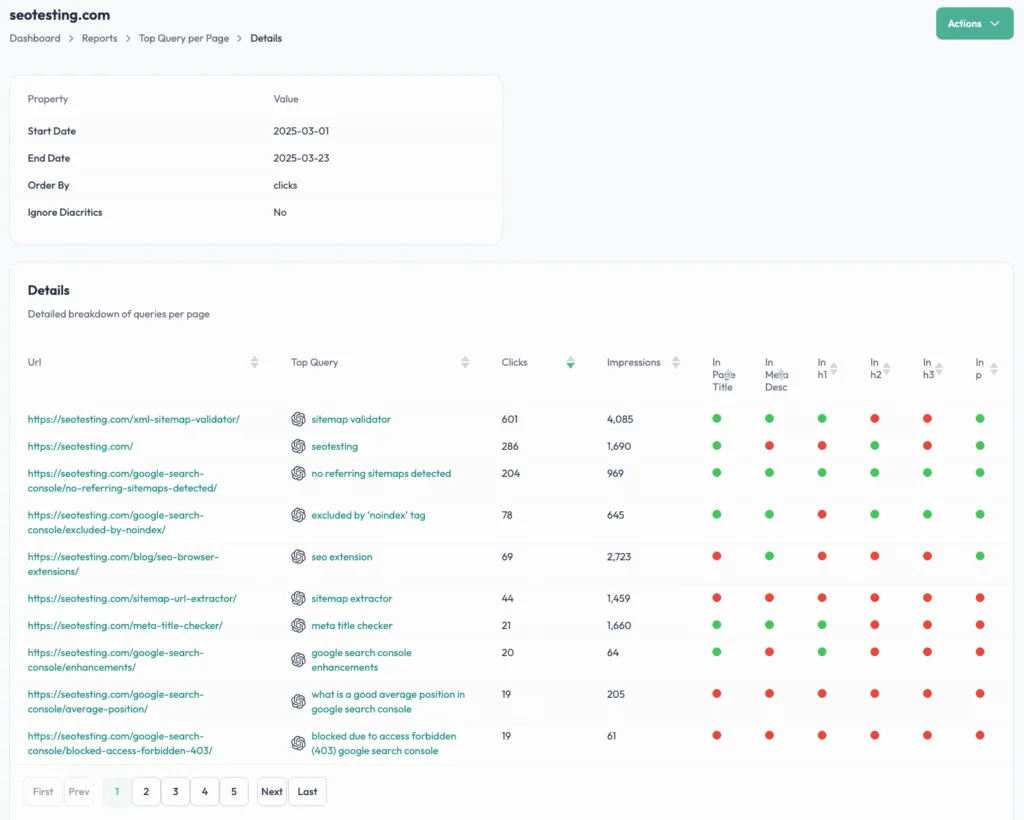
How to get new content ideas and improve existing content
The content reports in SEOTesting are designed to highlight new content ideas and ways to expand existing content.
By using the data from Google Search Console, SEOTesting suggests queries your site already ranks for but you may not have considered yet. Some of these can be really valuable in terms of new traffic sources.
Here are the content based reports SEOTesting has and what you can use them for:
- New Keywords – see queries your website has only just started to rank for. Plenty of new content ideas here.
- Search Intent Keywords – find queries your site ranks for based on informational, transactional, commercial and your custom search intent.
- Questions to Answer – this report pulls out question type queries your site/pages already rank for. Use them as new sections in existing content or for totally new articles.
- Striking distance keywords – your site ranks just off page 1 for these queries. Add some internal links and on-page SEO to try and break into the top 10.
- Find low quality content – find out which of your pages aren’t ranking in Google and could be of low-quality. Consider improving or deleting them.
- Content Decay – spot pages that are losing clicks over time so you can refresh them before the drop compounds. Read more.
- New Pages – see the pages Google has just started surfacing for your site. Read more.
All data
The All Pages and All Queries reports give you access to all the raw data available from Google Search Console. This bypasses the 1,000 row limit in Search Console and gives you access to all the URL and query data available.
Keyword cannibalization
Is your site suffering from keyword cannibalization? Find out if multiple pages are competing for the same keyword. This can harm each page’s ranking in search results.
AI SEO Lab Tools in SEOTesting
Our AI SEO Lab tools use AI to analyze your content and audience, and suggest concrete ways to improve. Start with the overview of the AI SEO Lab tools, then dive into any of the individual tools:
- Content Evaluator – score how well a page answers the queries it should be targeting (generated by the Query Fan-Out Tool).
- Query Fan-Out Tool – generate the wider set of questions and subtopics a page should cover.
- Vague Language Detector – find and tighten vague, non-specific wording.
- Unanchored Claims Analyzer – surface claims that need a citation or supporting evidence.
- Unclear Headings Checker – flag vague headings that don’t describe the section beneath them.
- List & Tables Suggestions – find passages that would read better as a list or table.
- ICP Personas Tool – build ideal-customer personas to write against.
- Persona Page Evaluator – check how well a page speaks to a given persona.
Internal Linking
InternalLinking helps you find and manage internal linking opportunities across your site, so your most important pages get the internal links they need. See the InternalLinking overview to get started.
Website Monitoring
Website Monitoring keeps an eye on the files search engines read first, so a silent change never turns into a silent traffic drop. Set up robots.txt monitoring to catch accidental crawl blocks, and the Sitemap Monitor to be alerted when your sitemaps change.
Free SEO tools
Alongside the main platform we offer a set of free, standalone SEO tools you can use any time:
- Meta Title Checker – check a page’s title tag length and content.
- Canonical Tag Checker – confirm a page’s canonical tag is set correctly.
- XML Sitemap Validator – check a sitemap for errors.
- XML Sitemap Generator – build a sitemap from a list of URLs.
- Sitemap URL Extractor – pull every URL out of a sitemap.
- URL to Markdown Converter – turn a page into clean Markdown.
Integrations
SEOTesting connects to the dashboards, browsers, and AI workflows you already use:
- Google Chrome Extension – see Search Console data as you browse.
- Data Studio Connector – pull SEOTesting data into your own Data Studio reports.
- Claude Desktop via MCP Server – query your SEOTesting data directly from Claude.
- Bing Webmaster Tools – add Bing data to your dashboard.
- Google Analytics (GA4) – bring GA4 data into your tests and reports.
How to add users
You can add as many users as you need to SEOTesting. To do this, click your name in the top right-hand corner, select ‘Account settings’, then go to the ‘User management’ tab and click ‘Add user’.
You choose exactly which sites each user can access, which is especially useful for agencies keeping client data separate.
How to add sites
On the main Launchpad at the top there’s a link to ‘Add Websites’.
When adding sites, you can filter the data that comes back in the following ways:
Country – this allows you to add a site to SEOTesting so the reports and other functionality filter the results to searches from that country. Really useful if your website only sells to a specific country.
Dimension – this allows you to add a site where the data and reports filter by a query or URL.
If you want to see a dashboard and reports on a subsection of a site, for example the blog, you could create a dimension filter such as this:
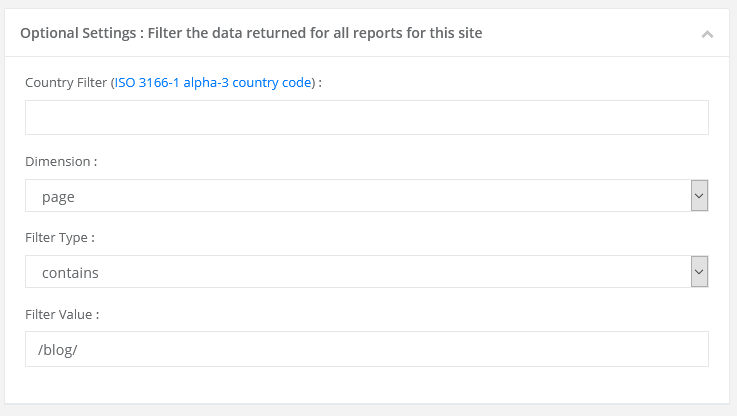
If you want to remove brand searches from the dashboard and reports, for example for a website such as Autotrader, you could create a dimension filter such as this:
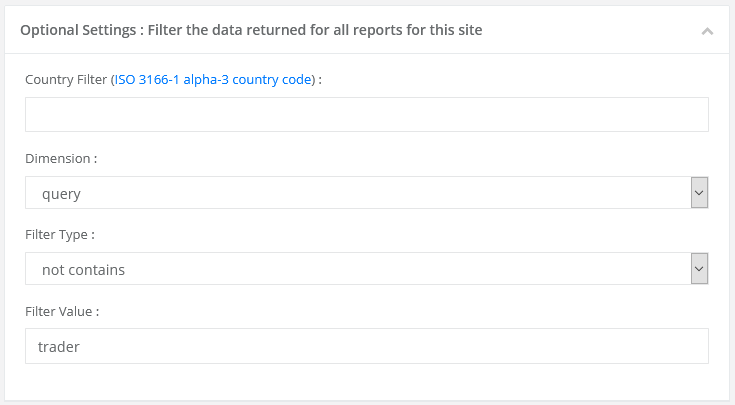
You can also filter using Regular Expressions (RegEx) so you can exclude brand misspellings using the Excluding RegEx filter type and the pipe character between values
e.g. trader|trider|troder
Frequently Asked Questions
What is SEOTesting?
SEOTesting is a tool that uses Google Search Console data to help you run SEO tests, track changes, and find content opportunities. It helps you improve rankings and clicks with data-driven insights.
How do I add my first site to SEOTesting?
After you register, go to the Launchpad and click “Select a website”, then from the dropdown click on “Add websites”. You can also filter data by country, query, or URL dimension when adding the site.
What is the Launchpad in SEOTesting?
The Launchpad is your main dashboard. It shows clicks per day for all your sites and marks Google algorithm updates on the graphs. You can click on a site to view detailed metrics like impressions and click-through rates and gain access to all the site-specific reports and testing functionality
How do I run SEO tests in SEOTesting?
You can run 3 types of tests:
1) Time-based SEO Tests:
- Single SEO Tests – for individual pages, the whole site, or subsections of a site where you are happy for page results to be grouped together.
- Group Tests – which can be run for pages or queries. Ideal for tracking the results when you’ve made the same change to a bunch of pages. Results are aggregated together, but you can also drill down into individual page results too.
- URL Switch Tests – for tracking the results of URL redirects, cannibalization fixes, or the building out of topic clusters.
2) SEO Split Tests – for comparing a test and control group of pages against each other over the same time period.
3) LLM Tests to measure how changes affect traffic from large language models.
What reports are available in SEOTesting?
Reports include winners and losers, low CTR queries, striking distance keywords, new keywords, search intent, questions to answer, and keyword cannibalization checks, plus Content Decay, New Pages, CTR Curve, and Brand vs Non-Brand.
What are the AI SEO Lab tools?
The AI SEO Lab tools use AI to analyze your content and audience – evaluating how well a page answers its target queries, checking headings and claims, and building customer personas – then suggesting specific improvements.
Can SEOTesting monitor my robots.txt and sitemaps?
Yes. Website Monitoring watches the files search engines read first and alerts you when your robots.txt or sitemaps change, so an accidental edit doesn’t quietly cost you traffic.
Does SEOTesting have any free SEO tools included?
Yes. There’s a set of free standalone tools including a Meta Title Checker, Canonical Tag Checker, XML Sitemap Validator and Generator, Sitemap URL Extractor, and a URL to Markdown converter.
How can SEOTesting help find new content ideas?
SEOTesting highlights new keywords your site has started ranking for. It also shows question-based queries and striking distance keywords you can use for new articles or to expand existing content.
Can I add team members to SEOTesting?
Yes. You can add users in Account settings > User management. This is useful for sharing reports and tests with your team.
How does SEOTesting handle Google algorithm updates?
Algorithm updates are shown as annotations on your site’s graphs. You can turn them on or off in the site’s configuration settings.
What is the site changelog in SEOTesting?
The site changelog records all SEO tests and annotations. It helps you track changes over time and report on historical optimizations.
Does SEOTesting work for specific site sections?
Yes. You can use URL or query dimension filters to create dashboards and reports for sections like your blog or to exclude branded searches. You can also set up a sub-folder specific property in Google Search Console, and add that to SEOTesting.
Testimonials
-

"Can totally recommend! It’s not only full of reports to easily identify low hanging fruit opportunities but also, the most straightforward platform to help run SEO tests"
Aleyda Solis, Intl SEO Consultant, Speaker & Author.


-

"SEOTesting has become one of my go-to SEO tools because it does so much with all the valuable data hidden in Google Search Console. It's the only thing that gives us the ability to use that data for keyword tracking, SEO tests, and quality testing."
Ruben Gamez, DocSketch